Applovin MAX
Prerequisites
- Integrate the MAX SDK if you haven't done that, simply follow these steps.
- Integrate Google Ad Manager Adapter
Step 1: Integrate Google Ad Manager Adapter
Android setup
Import the MAX SDK and Google Ad Manager Adapter
- Groovy
- Kotlin
// Repos
repositories {
    google()
    mavenCentral()
}

dependencies {
    implementation 'com.applovin:applovin-sdk:+'
    implementation 'com.applovin.mediation:google-ad-manager-adapter:+'
}
// Repos
repositories {
    google()
    mavenCentral()
}

dependencies {
    implementation("com.applovin:applovin-sdk:+")
    implementation("com.applovin.mediation:google-ad-manager-adapter:+")
}
Enable Google Ad Manager
In your app’s AndroidManifest.xml, add a <meta-data> tag inside the <application> tag, as in the example below:
<?xml version="1.0" encoding="utf-8"?>
<manifest … >
    <application … >
        <meta-data
              android:name="com.google.android.gms.ads.AD_MANAGER_APP"
              android:value="true"/>
        ⋮
    </application>
</manifest>
Migrating to AndroidX
Integrate AndroidX libraries into your project. Refer to the Migrating to AndroidX guide for more information on how to migrate your project.
Warning: Google Mobile Ads SDK versions 20.5.0 and newer require that you set the compileSdkVersion of your app to 31 in build.gradle. Google Mobile Ads SDK version 20.4.0.1 is the most recent version that still supports setting compileSdkVersion to 30.
iOS setup
Import the MAX SDK and Google Ad Manager Adapter
# Sources
source 'https://cdn.cocoapods.org/'

# Settings
use_frameworks!
inhibit_all_warnings!
# Pods
target 'YOUR_PROJECT_NAME' do
    pod 'AppLovinSDK'
    pod 'AppLovinMediationGoogleAdManagerAdapter'
end
Enable Google Ad Manager
In your app’s Info.plist, add a GADIsAdManagerAppkey with the Boolean value of YES.

Disable App Transport Security
Disable App Transport Security (ATS) by adding NSAppTransportSecurity to your app’s Info.plist. Then add the key NSAllowsArbitraryLoads and set it to YES. Make sure this is the only key present.

SKAdNetwork
Refer to the consolidated SKAdNetwork documentation for integration instructions.
Install the New Pods
Run the following on the command line.
pod install --repo-update
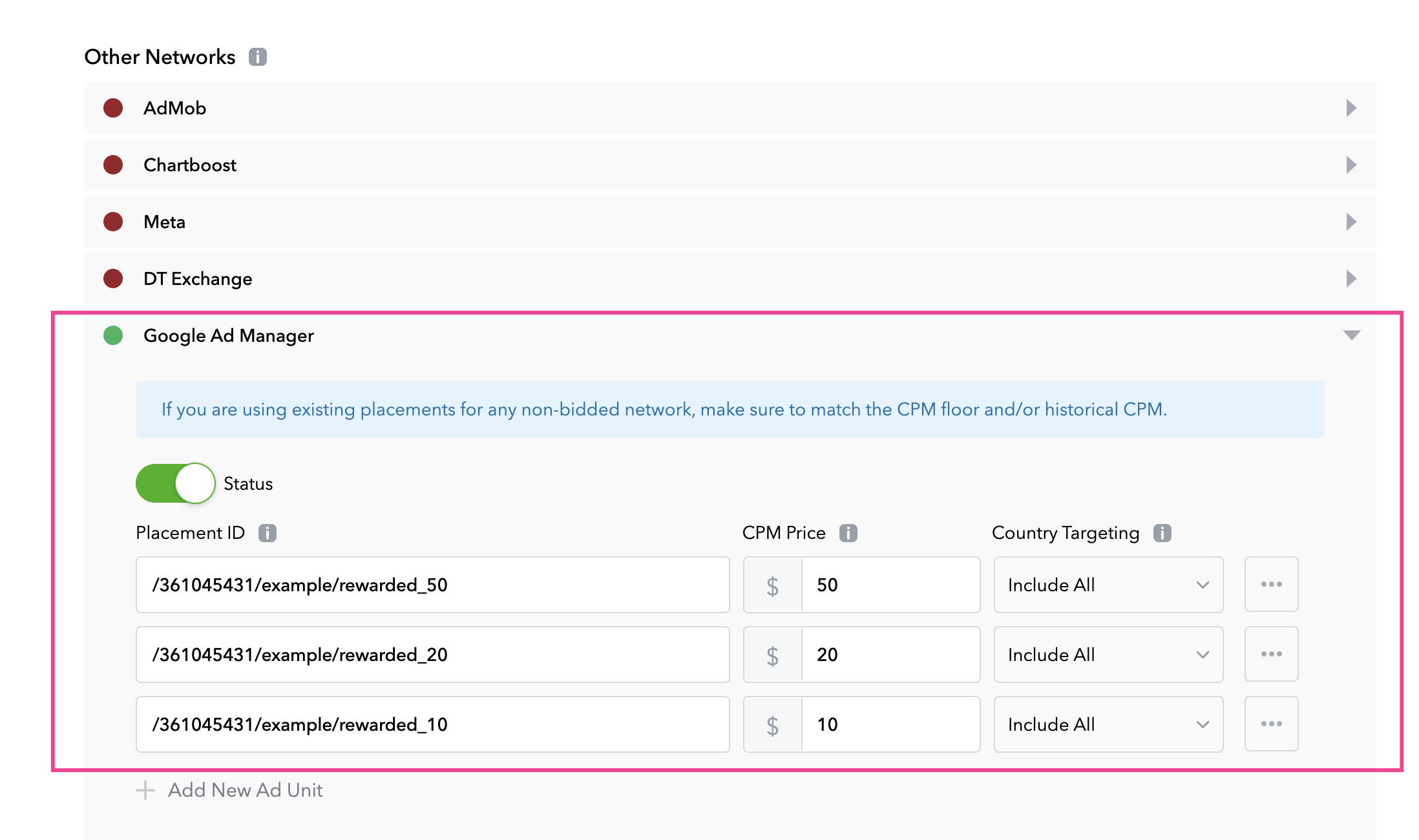
Step 2: Set up PremiumAds Ad Unit in SDK Network setup