App Open ads
App open ads automatically show a small branding area so users know they're in your app. Here is an example of what an app open ad looks like:
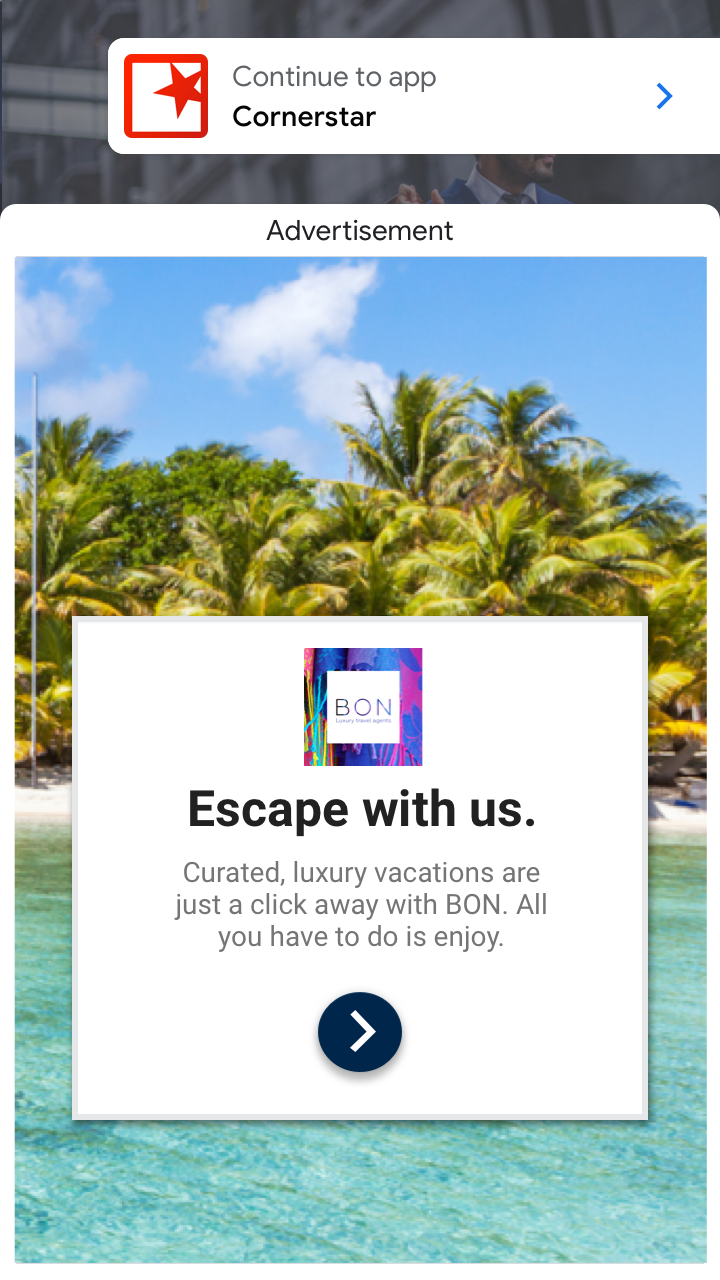
At a high level, here are the steps required to implement app open ads:
- Add methods to your
AppDelegateto load and display an app-open ad (AppOpenAdin Swift,GADAppOpenAdin Objective-C). - Detect app foregrounding events.
- Handle presentation callbacks.
GAD prefix: GADAppOpenAd is exposed in Swift as AppOpenAd, and GADRequest as Request. The Objective-C class names remain unchanged. The legacy orientation: parameter on the load call has been removed in recent SDKs — app open ads now render based on the current device orientation. For testing during development you can use Google's sample app-open ad unit ID ca-app-pub-3940256099942544/5575463023.Prerequisites
- Complete the Get started guide.
Implementation
The main steps to integrate app open ads are:
- Load an ad.
- Register for callbacks.
- Display the ad and handle the ad event.
Modify your app delegate
App open ads are shown when your application launches or when users bring your application to the foreground. To make sure you have an ad ready to display when a user opens your app, you'll want to have a reference to an ad ready to use.
That means you must preload a GADAppOpenAd before you need to show the ad. That way, your app open ad is ready to show the next time the app is opened. To facilitate having a single reference to the ad, add the following property and methods to your AppDelegate.h:
#import <GoogleMobileAds/GoogleMobileAds.h>
#import <UIKit/UIKit.h>
@interface AppDelegate : UIResponder <UIApplicationDelegate>

@property(strong, nonatomic) UIWindow* window;
@property(strong, nonatomic) GADAppOpenAd* appOpenAd;

- (void)requestAppOpenAd;
- (void)tryToPresentAd;

@end
Notice you should make your request and present methods accessible outside of your AppDelegate class so that you can call them from your UISceneDelegate for devices running iOS 13 and above. This is covered in more detail later.
In your AppDelegate.m add the requestAppOpenAd method:
- (void)requestAppOpenAd {
  self.appOpenAd = nil;
  [GADAppOpenAd loadWithAdUnitID:@"/75894840/app-adunit-demo/app-open"
                         request:[GADRequest request]
               completionHandler:^(GADAppOpenAd *_Nullable appOpenAd, NSError *_Nullable error) {
                 if (error) {
                   NSLog(@"Failed to load app open ad: %@", error);
                   return;
                 }
                 self.appOpenAd = appOpenAd;
               }];
}
This method makes a request to load a new app-open ad. If successful it sets the property on the AppDelegate so that the ad is ready to use when your users bring the app into the foreground. Recent SDK versions no longer accept an orientation: parameter on the load call — the ad is rendered using the current device orientation.
Next, add a method to display the ad from the AppDelegate.
- (void)tryToPresentAd {
  if (self.appOpenAd) {
    UIViewController *rootController = self.window.rootViewController;
    [self.appOpenAd presentFromRootViewController:rootController];
  } else {
    // If you don't have an ad ready, request one.
    [self requestAppOpenAd];
  }
}
This method checks the presence of an ad, and if it exists and is able to be shown from your root view controller, it will present the ad over your existing content. If no ad is available the method makes a new request.
Detect app foregrounding events
When a user enters your app for the first time, it is unlikely you will have an ad reference ready to be used. Instead, you should rely on the tryToPresentAd method defined above which will either display an ad if one is available, or request a new one. This method should be called every time your app comes into the foreground. This can be done by overriding the applicationDidBecomeActive: method in your AppDelegate:
- (void)applicationDidBecomeActive:(UIApplication *)application {
  [self tryToPresentAd];
}
Handle presentation callbacks
When your app displays an app open ad, you should rely on the GADFullScreenContentDelegate to handle certain presentation events. In particular, you'll want to request the next app open ad once the first one finishes presenting.
Make the following changes to your AppDelegate.h file:
#import <GoogleMobileAds/GoogleMobileAds.h>
#import <UIKit/UIKit.h>
@interface AppDelegate
    : UIResponder <UIApplicationDelegate, GADFullScreenContentDelegate>

@property(strong, nonatomic) UIWindow* window;
@property(strong, nonatomic) GADAppOpenAd* appOpenAd;

- (void)requestAppOpenAd;
- (void)tryToPresentAd;

@end
Then, in your AppDelegate.m file, add the following lines:
- (void)requestAppOpenAd {
  self.appOpenAd = nil;
  [GADAppOpenAd loadWithAdUnitID:@"/75894840/app-adunit-demo/app-open"
                         request:[GADRequest request]
               completionHandler:^(GADAppOpenAd *_Nullable appOpenAd, NSError *_Nullable error) {
                 if (error) {
                   NSLog(@"Failed to load app open ad: %@", error);
                   return;
                 }
                 self.appOpenAd = appOpenAd;
                 self.appOpenAd.fullScreenContentDelegate = self;
               }];
}

#pragma mark - GADFullScreenContentDelegate

/// Tells the delegate that the ad failed to present full screen content.
- (void)ad:(nonnull id<GADFullScreenPresentingAd>)ad
    didFailToPresentFullScreenContentWithError:(nonnull NSError *)error {
  NSLog(@"didFailToPresentFullScreenContentWithError");
  [self requestAppOpenAd];

}

/// Tells the delegate that the ad will present full screen content.
- (void)adWillPresentFullScreenContent:(nonnull id<GADFullScreenPresentingAd>)ad {
  NSLog(@"adWillPresentFullScreenContent");
}

/// Tells the delegate that the ad dismissed full screen content.
- (void)adDidDismissFullScreenContent:(nonnull id<GADFullScreenPresentingAd>)ad {
  NSLog(@"adDidDismissFullScreenContent");
  [self requestAppOpenAd];
}
...
These callbacks handle various events in the lifecycle of the App Open ad.
Consider ad expiration
To ensure you don't show an expired ad, you can add a method to the app delegate that checks the elapsed time since your ad reference loaded.
In your AppDelegate.h add an NSDate property:
#import <GoogleMobileAds/GoogleMobileAds.h>
#import <UIKit/UIKit.h>
@interface AppDelegate : UIResponder <UIApplicationDelegate>

@property(strong, nonatomic) UIWindow* window;
@property(strong, nonatomic) GADAppOpenAd* appOpenAd;
@property(weak, nonatomic) NSDate *loadTime;

- (void)requestAppOpenAd;
- (void)tryToPresentAd;

@end
You can then add a method that returns true if less than a certain number of hours have passed since your ad loaded.
In AppDelegate.m add the following method:
- (BOOL)wasLoadTimeLessThanNHoursAgo:(int)n {
  NSDate *now = [NSDate date];
  NSTimeInterval timeIntervalBetweenNowAndLoadTime = [now timeIntervalSinceDate:self.loadTime];
  double secondsPerHour = 3600.0;
  double intervalInHours = timeIntervalBetweenNowAndLoadTime / secondsPerHour;
  return intervalInHours < n;
}
The next step is to set the loadTime property when your ad loads:
- (void)requestAppOpenAd {
  self.appOpenAd = nil;
  [GADAppOpenAd loadWithAdUnitID:@"/75894840/app-adunit-demo/app-open"
                         request:[GADRequest request]
               completionHandler:^(GADAppOpenAd *_Nullable appOpenAd, NSError *_Nullable error) {
                 if (error) {
                   NSLog(@"Failed to load app open ad: %@", error);
                   return;
                 }
                 self.appOpenAd = appOpenAd;
                 self.appOpenAd.fullScreenContentDelegate = self;
                 self.loadTime = [NSDate date];
               }];
}
Finally, make sure you check the validity of your ad reference before you try to show the ad:
- (void)tryToPresentAd {
  if (self.appOpenAd && [self wasLoadTimeLessThanNHoursAgo:4]) {
    UIViewController *rootController = self.window.rootViewController;
    [self.appOpenAd presentFromRootViewController:rootController];
  } else {
    // If you don't have an ad ready, request one.
    [self requestAppOpenAd];
  }
}
Cold starts and loading screens
The above documentation assumes that you only show app open ads when users foreground your app when it is suspended in memory. "Cold starts" occur when your app is launched but was not previously suspended in memory.
An example of a cold start is when a user opens your app for the first time. With cold starts, you won't have a previously loaded app open ad that's ready to be shown right away. The delay between when you request an ad and receive an ad back can create a situation where users are able to briefly use your app before being surprised by an out of context ad. This should be avoided because it is a bad user experience.
The preferred way to use app open ads on cold starts is to use a loading screen to load your game or app assets, and to only show the ad from the loading screen. If your app has completed loading and has sent the user to the main content of your app, do not show the ad.
Best practices
Google built app open ads to help you monetize your app's loading screen, but it's important to keep best practices in mind so that your users enjoy using your app. Make sure to:
- Wait to show your first app open ad until after your users have used your app a few times.
- Show app open ads during times when your users would otherwise be waiting for your app to load.
- If you have a loading screen under the app open ad, and your loading screen completes loading before the ad is dismissed, you may want to dismiss your loading screen in the adDidDismissFullScreenContent method.