In-stream Video ads
A video player environment is different from web environments. To manage ad requests and responses in a video environment, Mobile Ads SDK recommends integration with the Interactive Media Ads (IMA) SDK.
IMA SDKs make it easy to integrate multimedia ads into your apps. IMA SDKs can request ads from any VAST-compliant ad server and manage ad playback in your apps. With IMA client-side SDKs, you maintain control of content video playback, while the SDK handles ad playback. Ads play in a separate video player positioned on top of the app's content video player.
IMA client-side overview
Implementing IMA client-side involves four main SDK components, which are demonstrated in this guide:
- IMAAdDisplayContainer: A container object where ads are rendered.
- IMAAdsLoader: An object that requests ads and handles events from ads request responses. You should only instantiate one ads loader, which can be reused throughout the life of the application.
- IMAAdsRequest: An object that defines an ads request. Ads requests specify the URL for the VAST ad tag, as well as additional parameters, such as ad dimensions.
- IMAAdsManager: An object that contains the response to the ads request, controls ad playback, and listens for ad events fired by the SDK.
Prerequisites
- Xcode 16 or later
- Target iOS 15.0 or higher
- CocoaPods
1. Add the IMA SDK to the Xcode project
In Xcode, create a new iOS project using Objective-C or Swift. Use BasicExample as the project name.
Installing the SDK using CocoaPods (preferred)
CocoaPods is a dependency manager for Xcode projects and is the recommended method for installing the IMA SDK. For more information on installing or using CocoaPods, see the CocoaPods documentation. Once you have CocoaPods installed, use the following instructions to install the IMA SDK:
- In the same directory as your BasicExample.xcodeproj file, create a text file called Podfile, and add the following configuration:
source 'https://github.com/CocoaPods/Specs.git'
platform :ios, '15.0'

target 'BasicExample' do
  pod 'GoogleAds-IMA-iOS-SDK', '~> 3.27'
end
- From the directory that contains the Podfile, run pod install --repo-update
- Verify that the installation was successful by opening the BasicExample.xcworkspace file and confirming that it contains two projects: BasicExample and Pods (the dependencies installed by CocoaPods).
Manually downloading and installing the SDK
If you don’t want to use CocoaPods, you can download the IMA SDK and manually add it to your project.
- From the iOS IMA Download page, download and extract the latest version of the iOS IMA SDK.
- Open BasicExample.xcodeproj.
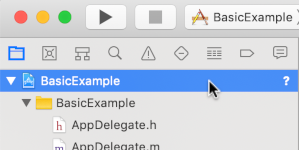
- In the left pane, click the project name.
click the project name
- In the center pane, click Build Phases, click Build Phases

- Expand the Link Binary With Libraries section.
- At the bottom of the libraries list, click the plus icon [+].
- Click Add Other.
- In the directory where you extracted the downloaded SDK, select GoogleInteractiveMediaAds.framework and click Open.
- At the bottom of the libraries list, click the plus icon [+] again.
- In the Status column, verify that GoogleInteractiveMediaAds.framework is set to Required.
- Include the -ObjC linker flag in your build settings. For more information, see Apple QA1490.
2. Create a simple video player
First, implement a basic video player. Initially, this player does not use the IMA SDK and does not yet contain any method to trigger playback.
ViewController.m
- Objective-C
- Swift
#import "ViewController.h"

#import <AVKit/AVKit.h>

NSString *const kContentURLString =
    @"https://storage.googleapis.com/interactive-media-ads/media/bipbop.m3u8";

@interface ViewController ()
@property(nonatomic) AVPlayerViewController *contentPlayerViewController;
@end

@implementation ViewController

- (void)viewDidLoad {
  [super viewDidLoad];
  self.view.backgroundColor = UIColor.blackColor;
  [self setupContentPlayer];
}

- (void)setupContentPlayer {
  // Create a content video player.
  NSURL *contentURL = [NSURL URLWithString:kContentURLString];
  AVPlayer *player = [AVPlayer playerWithURL:contentURL];
  self.contentPlayerViewController = [[AVPlayerViewController alloc] init];
  self.contentPlayerViewController.player = player;
  self.contentPlayerViewController.view.frame = self.view.bounds;

  // Attach content video player to view hierarchy.
  [self showContentPlayer];
}

// Add the content video player as a child view controller.
- (void)showContentPlayer {
  [self addChildViewController:self.contentPlayerViewController];
  self.contentPlayerViewController.view.frame = self.view.bounds;
  [self.view insertSubview:self.contentPlayerViewController.view atIndex:0];
  [self.contentPlayerViewController didMoveToParentViewController:self];
}

// Remove and detach the content video player.
- (void)hideContentPlayer {
  // The whole controller needs to be detached so that it doesn't capture events from the remote.
  [self.contentPlayerViewController willMoveToParentViewController:nil];
  [self.contentPlayerViewController.view removeFromSuperview];
  [self.contentPlayerViewController removeFromParentViewController];
}

@end
import AVFoundation
import UIKit

class ViewController: UIViewController {
  static let ContentURLString = "https://storage.googleapis.com/interactive-media-ads/media/bipbop.m3u8"

  var playerViewController: AVPlayerViewController!

  override func viewDidLoad() {
    super.viewDidLoad()
    self.view.backgroundColor = UIColor.black;
    setUpContentPlayer()
  }

  func setUpContentPlayer() {
    // Load AVPlayer with path to your content.
    let contentURL! = URL(string: ViewController.ContentURLString)
    let player = AVPlayer(url: contentURL)
    playerViewController = AVPlayerViewController()
    playerViewController.player = player

    showContentPlayer()
  }

  func showContentPlayer() {
    self.addChild(playerViewController)
    playerViewController.view.frame = self.view.bounds
    self.view.insertSubview(playerViewController.view, at: 0)
    playerViewController.didMove(toParent:self)
  }

  func hideContentPlayer() {
    // The whole controller needs to be detached so that it doesn't capture  events from the remote.
    playerViewController.willMove(toParent:nil)
    playerViewController.view.removeFromSuperview()
    playerViewController.removeFromParent()
  }
}
3. Import the IMA SDK
Next, add the IMA framework using an import statement beneath the existing imports.
ViewController.m
- Objective-C
- Swift
#import "ViewController.h"

#import <AVKit/AVKit.h>
#import <GoogleInteractiveMediaAds/GoogleInteractiveMediaAds.h>
NSString *const kContentURLString =
    @"https://storage.googleapis.com/interactive-media-ads/media/bipbop.m3u8";
import AVFoundation
import GoogleInteractiveMediaAds
import UIKit

class ViewController: UIViewController {
  static let ContentURLString = "https://devstreaming-cdn.apple.com/videos/streaming/examples/img_bipbop_adv_example_fmp4/master.m3u8"
4. Implement content playhead tracker and end-of-stream observer
In order to play mid-roll ads, the IMA SDK needs to track the current position of your video content. To do this, create a class that implements IMAContentPlayhead. If you're using an AVPlayer, as shown in this example, the SDK provides the IMAAVPlayerContentPlayhead class which does this for you. If you're not using AVPlayer, you'll need to implement IMAContentPlayhead on a class of your own.
You also need to let the SDK know when your content is done playing so it can display post-roll ads. This is done by calling contentComplete on the IMAAdsLoader, using AVPlayerItemDidPlayToEndTimeNotification.
ViewController.m
- Objective-C
- Swift
...

@interface ViewController ()
@property(nonatomic) IMAAVPlayerContentPlayhead *contentPlayhead;
@property(nonatomic) AVPlayerViewController *contentPlayerViewController;
@end

...

- (void)setupContentPlayer {
  // Create a content video player.
  NSURL *contentURL = [NSURL URLWithString:kContentURLString];
  AVPlayer *player = [AVPlayer playerWithURL:contentURL];
  self.contentPlayerViewController = [[AVPlayerViewController alloc] init];
  self.contentPlayerViewController.player = player;
  self.contentPlayerViewController.view.frame = self.view.bounds;
  self.contentPlayhead =
      [[IMAAVPlayerContentPlayhead alloc] initWithAVPlayer:self.contentPlayerViewController.player];

  // Track end of content.
  AVPlayerItem *contentPlayerItem = self.contentPlayerViewController.player.currentItem;
  [NSNotificationCenter.defaultCenter addObserver:self
                                         selector:@selector(contentDidFinishPlaying:)
                                             name:AVPlayerItemDidPlayToEndTimeNotification
                                           object:contentPlayerItem];

  // Attach content video player to view hierarchy.
  [self showContentPlayer];
}

...

- (void)contentDidFinishPlaying:(NSNotification *)notification {}

- (void)dealloc {
  [NSNotificationCenter.defaultCenter removeObserver:self];
}

@end
...

class ViewController: UIViewController {
  static let ContentURLString = "https://devstreaming-cdn.apple.com/videos/streaming/examples/img_bipbop_adv_example_fmp4/master.m3u8"

  var contentPlayhead: IMAAVPlayerContentPlayhead?
  var playerViewController: AVPlayerViewController!

  deinit {
    NotificationCenter.default.removeObserver(self)
  }

...

  func setUpContentPlayer() {
    // Load AVPlayer with path to your content.
    let contentURL! = URL(string: ViewController.ContentURLString)
    let player = AVPlayer(url: contentURL)
    playerViewController = AVPlayerViewController()
    playerViewController.player = player

    // Set up your content playhead and contentComplete callback.
    contentPlayhead = IMAAVPlayerContentPlayhead(avPlayer: player)
    NotificationCenter.default.addObserver(
      self,
      selector: #selector(ViewController.contentDidFinishPlaying(_:)),
      name: NSNotification.Name.AVPlayerItemDidPlayToEndTime,
      object: player.currentItem);

    showContentPlayer()
  }

...

  @objc func contentDidFinishPlaying(_ notification: Notification) {
    adsLoader.contentComplete()
  }
}
5. Initialize the ads loader and make an ads request
In order to request a set of ads, you need to create an IMAAdsLoader instance. This loader can be used to process IMAAdsRequest objects associated with a specified ad tag URL.
As a best practice, only maintain one instance of IMAAdsLoader for the entire lifecycle of your app. To make additional ad requests, create a new IMAAdsRequest object, but re-use the same IMAAdsLoader. For more information, see the IMA SDK FAQ.
ViewController.m
- Objective-C
- Swift
...

NSString *const kContentURLString =
    @"https://devstreaming-cdn.apple.com/videos/streaming/examples/img_bipbop_adv_example_fmp4/"
    @"master.m3u8";
NSString *const kAdTagURLString = @"https://pubads.g.doubleclick.net/gampad/ads?"
    @"iu=/21775744923/external/vmap_ad_samples&sz=640x480&"
    @"cust_params=sample_ar%3Dpremidpostlongpod&"
    @"ciu_szs=300x250&gdfp_req=1&ad_rule=1&output=vmap&unviewed_position_start=1&"
    @"env=vp&impl=s&cmsid=496&vid=short_onecue&correlator=";

@interface ViewController ()
@property(nonatomic) IMAAdsLoader *adsLoader;
@property(nonatomic) IMAAVPlayerContentPlayhead *contentPlayhead;
@property(nonatomic) AVPlayerViewController *contentPlayerViewController;
@end

@implementation ViewController

- (void)viewDidLoad {
  [super viewDidLoad];
  self.view.backgroundColor = UIColor.blackColor;
  [self setupContentPlayer];
  [self setupAdsLoader];
}

- (void)viewDidAppear:(BOOL)animated {
  [super viewDidAppear:animated];
  [self requestAds];
}

- (void)setupAdsLoader {
  self.adsLoader = [[IMAAdsLoader alloc] init];
}

- (void)requestAds {
  // Pass the main view as the container for ad display.
  IMAAdDisplayContainer *adDisplayContainer =
      [[IMAAdDisplayContainer alloc] initWithAdContainer:self.view];
  IMAAdsRequest *request = [[IMAAdsRequest alloc] initWithAdTagUrl:kAdTagURLString
                                                adDisplayContainer:adDisplayContainer
                                                   contentPlayhead:self.contentPlayhead
                                                       userContext:nil];
  [self.adsLoader requestAdsWithRequest:request];
}

...

- (void)contentDidFinishPlaying:(NSNotification *)notification {
  // Notify the SDK that the postrolls should be played.
  [self.adsLoader contentComplete];
}

...

@end
...

class ViewController: UIViewController {
  static let ContentURLString = "https://devstreaming-cdn.apple.com/videos/streaming/examples/img_bipbop_adv_example_fmp4/master.m3u8"
  static let AdTagURLString = "https://pubads.g.doubleclick.net/gampad/ads?iu=/21775744923/external/single_ad_samples&sz=640x480&cust_params=sample_ct%3Dlinear&ciu_szs=300x250%2C728x90&gdfp_req=1&output=vast&unviewed_position_start=1&env=vp&impl=s&correlator="

  var adsLoader: IMAAdsLoader!
  var contentPlayhead: IMAAVPlayerContentPlayhead?
  var playerViewController: AVPlayerViewController!

...

  override func viewDidLoad() {
    super.viewDidLoad()
    self.view.backgroundColor = UIColor.black;
    setUpContentPlayer()
    setUpAdsLoader()
  }

  override func viewDidAppear(_ animated: Bool) {
    super.viewDidAppear(animated);
    requestAds()
  }

...

  func setUpAdsLoader() {
    adsLoader = IMAAdsLoader(settings: nil)
  }

  func requestAds() {
    // Create ad display container for ad rendering.
    let adDisplayContainer = IMAAdDisplayContainer(adContainer: self.view)
    // Create an ad request with our ad tag, display container, and optional user context.
    let request = IMAAdsRequest(
        adTagUrl: ViewController.AdTagURLString,
        adDisplayContainer: adDisplayContainer,
        contentPlayhead: contentPlayhead,
        userContext: nil)

    adsLoader.requestAds(with: request)
  }

  @objc func contentDidFinishPlaying(_ notification: Notification) {
    adsLoader.contentComplete()
  }
}
6. Set up an ads loader delegate
On a successful load event, the IMAAdsLoader calls the adsLoadedWithData method of its assigned delegate, passing it an instance of IMAAdsManager. You can then initialize the ads manager, which loads the individual ads, as defined by the response to the ad tag URL.
In addition, be sure to handle any errors that may occur during the loading process. If ads do not load, make sure that media playback continues, without ads, so as to not interfere with the user's experience.
ViewController.m
- Objective-C
- Swift
...

@interface ViewController () <IMAAdsLoaderDelegate>
@property(nonatomic) IMAAdsLoader *adsLoader;
@property(nonatomic) IMAAdsManager *adsManager;
@property(nonatomic) IMAAVPlayerContentPlayhead *contentPlayhead;
@property(nonatomic) AVPlayerViewController *contentPlayerViewController;
@end

@implementation ViewController

...

- (void)setupAdsLoader {
  self.adsLoader = [[IMAAdsLoader alloc] init];
  self.adsLoader.delegate = self;
}

...

#pragma mark - IMAAdsLoaderDelegate

- (void)adsLoader:(IMAAdsLoader *)loader adsLoadedWithData:(IMAAdsLoadedData *)adsLoadedData {
  // Initialize and listen to the ads manager loaded for this request.
  self.adsManager = adsLoadedData.adsManager;
  [self.adsManager initializeWithAdsRenderingSettings:nil];
}

- (void)adsLoader:(IMAAdsLoader *)loader failedWithErrorData:(IMAAdLoadingErrorData *)adErrorData {
  // Fall back to playing content.
  NSLog(@"Error loading ads: %@", adErrorData.adError.message);
  [self.contentPlayerViewController.player play];
}

@end
...

class ViewController: UIViewController, IMAAdsLoaderDelegate {

...

  var adsLoader: IMAAdsLoader!
  var adsManager: IMAAdsManager!
  var contentPlayhead: IMAAVPlayerContentPlayhead?
  var playerViewController: AVPlayerViewController!

...

  func setUpAdsLoader() {
    adsLoader = IMAAdsLoader(settings: nil)
    adsLoader.delegate = self
  }

...

  // MARK: - IMAAdsLoaderDelegate

  func adsLoader(_ loader: IMAAdsLoader!, adsLoadedWith adsLoadedData: IMAAdsLoadedData!) {
    adsManager = adsLoadedData.adsManager
    adsManager.initialize(with: nil)
  }

  func adsLoader(_ loader: IMAAdsLoader!, failedWith adErrorData: IMAAdLoadingErrorData!) {
    print("Error loading ads: " + adErrorData.adError.message)
    showContentPlayer()
    playerViewController.player?.play()
  }
}
7. Set up an ads manager delegate
Lastly, to manage events and state changes, the ads manager needs a delegate of its own. The IMAAdManagerDelegate has methods to handle ad events and errors, as well as methods to trigger play and pause on your video content.
Starting playback
There are many events that the didReceiveAdEvent method can be used to handle, but for this basic example, simply listen for the LOADED event to tell the ads manager to start playback of content and ads.
ViewController.m
- Objective-C
- Swift
@interface ViewController () <IMAAdsLoaderDelegate, IMAAdsManagerDelegate>

...

- (void)adsLoader:(IMAAdsLoader *)loader adsLoadedWithData:(IMAAdsLoadedData *)adsLoadedData {
  // Initialize and listen to the ads manager loaded for this request.
  self.adsManager = adsLoadedData.adsManager;
  self.adsManager.delegate = self;
  [self.adsManager initializeWithAdsRenderingSettings:nil];
}

...

#pragma mark - IMAAdsManagerDelegate

- (void)adsManager:(IMAAdsManager *)adsManager didReceiveAdEvent:(IMAAdEvent *)event {
  // Play each ad once it has loaded.
  if (event.type == kIMAAdEvent_LOADED) {
    [adsManager start];
  }
}

...
...

class ViewController: UIViewController, IMAAdsLoaderDelegate, IMAAdsManagerDelegate {

...

  func adsLoader(_ loader: IMAAdsLoader!, adsLoadedWith adsLoadedData: IMAAdsLoadedData!) {
    // Grab the instance of the IMAAdsManager and set yourself as the delegate.
    adsManager = adsLoadedData.adsManager
    adsManager.delegate = self
    adsManager.initialize(with: nil)
  }

...

  // MARK: - IMAAdsManagerDelegate

  func adsManager(_ adsManager: IMAAdsManager!, didReceive event: IMAAdEvent!) {
    // Play each ad once it has been loaded
    if event.type == IMAAdEventType.LOADED {
      adsManager.start()
    }
  }

...
Handling errors
Add a handler for ad errors as well. If an error occurs, like in the previous step, resume content playback.
ViewController.m
- Objective-C
- Swift
...

- (void)adsManager:(IMAAdsManager *)adsManager didReceiveAdError:(IMAAdError *)error {
  // Fall back to playing content.
  NSLog(@"AdsManager error: %@", error.message);
  [self showContentPlayer];
  [self.contentPlayerViewController.player play];
}
@end
...

  func adsManager(_ adsManager: IMAAdsManager!, didReceive error: IMAAdError!) {
    // Fall back to playing content
    print("AdsManager error: " + error.message)
    showContentPlayer()
    playerViewController.player?.play()
  }
Triggering play and pause events
The last two delegate methods you need to implement are used to trigger play and pause events on the underlying video content, when requested by the IMA SDK. Triggering pause and play when requested prevents the user from missing portions of the video content when ads are displayed.
ViewController.m
- Objective-C
- Swift
...

- (void)adsManagerDidRequestContentPause:(IMAAdsManager *)adsManager {
  // Pause the content for the SDK to play ads.
  [self.contentPlayerViewController.player pause];
  [self hideContentPlayer];
}

- (void)adsManagerDidRequestContentResume:(IMAAdsManager *)adsManager {
  // Resume the content since the SDK is done playing ads (at least for now).
  [self showContentPlayer];
  [self.contentPlayerViewController.player play];
}

@end
...

  func adsManagerDidRequestContentPause(_ adsManager: IMAAdsManager!) {
    // Pause the content for the SDK to play ads.
    playerViewController.player?.pause()
    hideContentPlayer()
  }

  func adsManagerDidRequestContentResume(_ adsManager: IMAAdsManager!) {
    // Resume the content since the SDK is done playing ads (at least for now).
    showContentPlayer()
    playerViewController.player?.play()
  }
}