Display a NativeAd
Displaying a system-defined native ad format
When a native ad loads, the Google Mobile Ads SDK invokes the listener for the corresponding ad format. Your app is then responsible for displaying the ad, though it doesn't necessarily have to do so immediately. To make displaying system-defined ad formats easier, the SDK offers some useful resources, as described below.
GAD prefix: GADNativeAdView is exposed in Swift as NativeAdView, GADMediaView as MediaView, and GADNativeAd as NativeAd. The Objective-C class names remain unchanged.Native ad view
For the native-ad object, there is a corresponding "ad view" class (NativeAdView in Swift, GADNativeAdView in Objective-C). This ad view class is a UIView that publishers should use to display the ad. A single native-ad-view can display a single native-ad instance. Each of the UIView objects used to display that ad's assets should be subviews of that native-ad-view object.
If you were displaying an ad in a UITableView, for example, the view hierarchy for one of the cells might look like this:
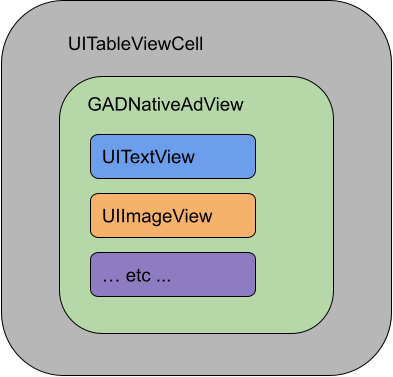
The native-ad-view class also provides IBOutlets used to register the view used for each individual asset, and a property to register the native-ad object itself. Registering the views in this way allows the SDK to automatically handle tasks such as:
- Recording clicks.
- Recording impressions (when the first pixel is visible on the screen).
- Displaying the AdChoices overlay.
AdChoices overlay
An AdChoices overlay is added as an ad view by the SDK when a backfill ad is returned. If your app uses native ads backfill, leave space in your preferred corner of your native ad view for the automatically inserted AdChoices logo. Also, it's important that the AdChoices overlay be easily seen, so choose background colors and images appropriately. For more information on the overlay's appearance and function, refer to the programmatic native ads implementation guidelines.
Ad attribution for programmatic native ads
When displaying programmatic native ads, you must display an ad attribution to denote that the view is an advertisement. Learn more in our policy guidelines.
Code example
Let's take a look at how to display native ads using views loaded dynamically from xib files. This can be a very useful approach when using GADAdLoaders configured to request multiple formats.
Laying out the UIViews
The first step is to lay out the UIViews that will display native ad assets. You can do this in the Interface Builder as you would when creating any other xib file. Here's how the layout for a native ad might look:
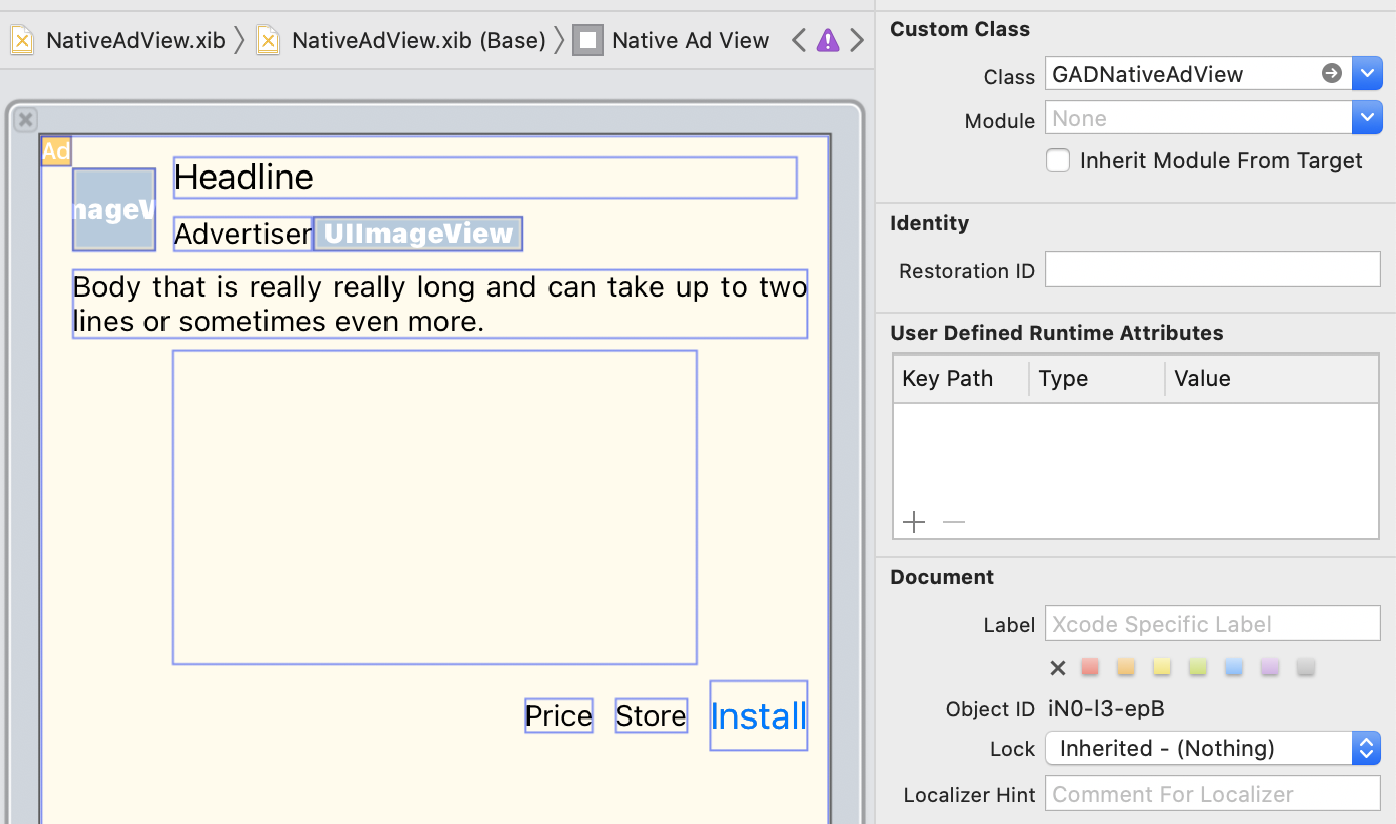
Note the Custom Class value in the top right of the image. It's set to the native-ad-view class (NativeAdView in Swift, GADNativeAdView in Objective-C). This is the ad view class that is used to display a native ad.
You'll also need to set the custom class for the media-view (MediaView / GADMediaView), which is used to display the video or image for the ad.
Linking outlets to views
Once the views are in place and you've assigned the correct ad view class to the layout, link the ad view's asset outlets to the UIViews you've created. Here's how you might link the ad view's asset outlets to the UIViews created for an ad:
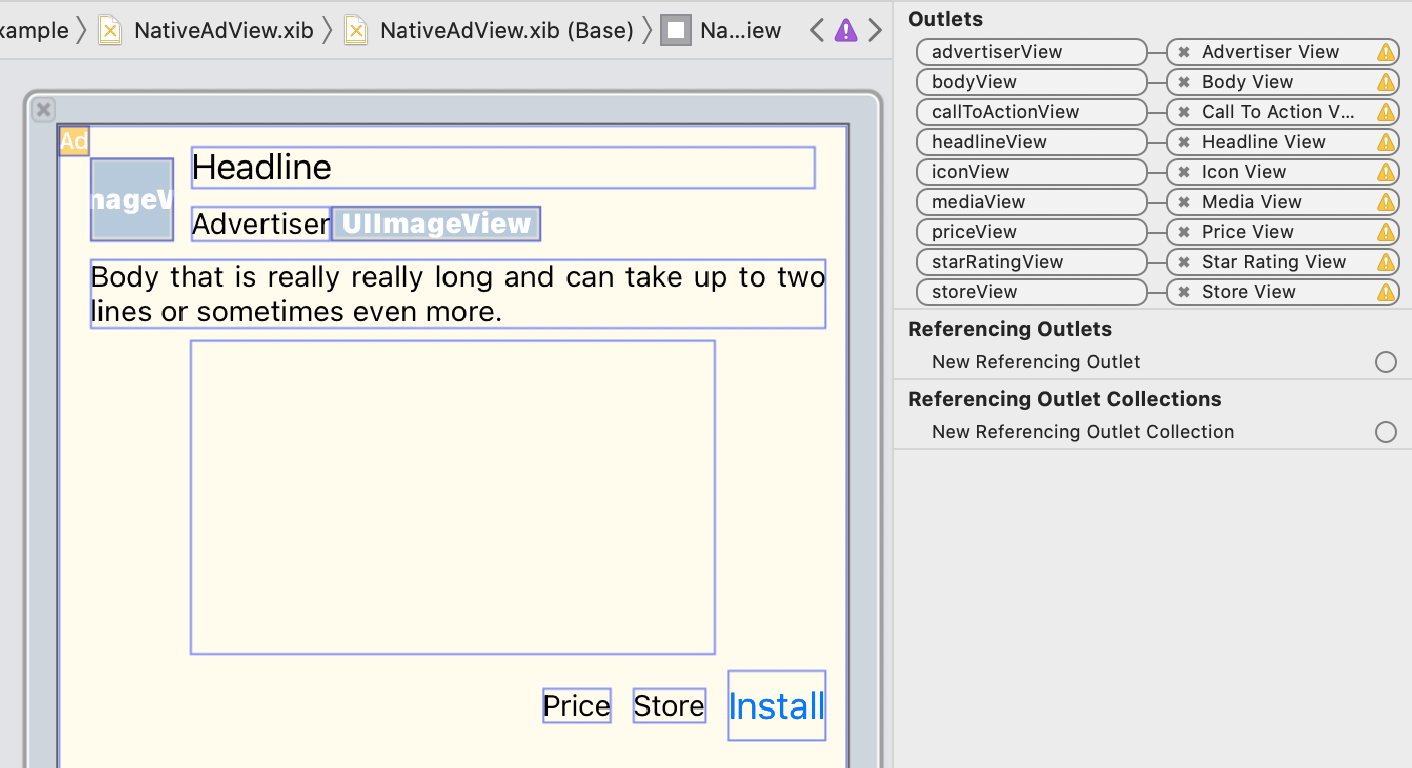
In the outlet panel, the outlets in the native-ad-view have been linked to the UIViews laid out in the Interface Builder. This lets the SDK know which UIView displays which asset. It's also important to remember that these outlets represent the views that are clickable in the ad.
Displaying the ad
Once the layout is complete and the outlets are linked, the last step is to add code to your app that displays an ad once it has loaded. Here's a method to display an ad in the view defined above:
- Swift
- Objective-C
// MARK: - NativeAdLoaderDelegate
func adLoader(_ adLoader: AdLoader, didReceive nativeAd: NativeAd) {
  print("Received native ad: \(nativeAd)")
  refreshAdButton.isEnabled = true
  // Create and place ad in view hierarchy.
  let nibView = Bundle.main.loadNibNamed("NativeAdView", owner: nil, options: nil)?.first
  guard let nativeAdView = nibView as? NativeAdView else {
    return
  }
  setAdView(nativeAdView)

  // Set ourselves as the native ad delegate to be notified of native ad events.
  nativeAd.delegate = self

  // Populate the native ad view with the native ad assets.
  // The headline and mediaContent are guaranteed to be present in every native ad.
  (nativeAdView.headlineView as? UILabel)?.text = nativeAd.headline
  nativeAdView.mediaView?.mediaContent = nativeAd.mediaContent

  // This app uses a fixed width for the media-view and changes its height to match the aspect
  // ratio of the media it displays.
  if let mediaView = nativeAdView.mediaView, nativeAd.mediaContent.aspectRatio > 0 {
    let heightConstraint = NSLayoutConstraint(
      item: mediaView,
      attribute: .height,
      relatedBy: .equal,
      toItem: mediaView,
      attribute: .width,
      multiplier: CGFloat(1 / nativeAd.mediaContent.aspectRatio),
      constant: 0)
    heightConstraint.isActive = true
  }

  // These assets are not guaranteed to be present. Check that they are before
  // showing or hiding them.
  (nativeAdView.bodyView as? UILabel)?.text = nativeAd.body
  nativeAdView.bodyView?.isHidden = nativeAd.body == nil

  (nativeAdView.callToActionView as? UIButton)?.setTitle(nativeAd.callToAction, for: .normal)
  nativeAdView.callToActionView?.isHidden = nativeAd.callToAction == nil

  (nativeAdView.iconView as? UIImageView)?.image = nativeAd.icon?.image
  nativeAdView.iconView?.isHidden = nativeAd.icon == nil

  (nativeAdView.starRatingView as? UIImageView)?.image = imageOfStars(
    fromStarRating: nativeAd.starRating)
  nativeAdView.starRatingView?.isHidden = nativeAd.starRating == nil

  (nativeAdView.storeView as? UILabel)?.text = nativeAd.store
  nativeAdView.storeView?.isHidden = nativeAd.store == nil

  (nativeAdView.priceView as? UILabel)?.text = nativeAd.price
  nativeAdView.priceView?.isHidden = nativeAd.price == nil

  (nativeAdView.advertiserView as? UILabel)?.text = nativeAd.advertiser
  nativeAdView.advertiserView?.isHidden = nativeAd.advertiser == nil

  // In order for the SDK to process touch events properly, user interaction should be disabled.
  nativeAdView.callToActionView?.isUserInteractionEnabled = false

  // Associate the native ad view with the native ad object. This is
  // required to make the ad clickable.
  // Note: this should always be done after populating the ad views.
  nativeAdView.nativeAd = nativeAd
}
#pragma mark GADNativeAdLoaderDelegate implementation

- (void)adLoader:(GADAdLoader *)adLoader didReceiveNativeAd:(GADNativeAd *)nativeAd {
  NSLog(@"Received native ad: %@", nativeAd);
  self.refreshButton.enabled = YES;

  // Create and place ad in view hierarchy.
  GADNativeAdView *nativeAdView =
      [[NSBundle mainBundle] loadNibNamed:@"NativeAdView" owner:nil options:nil].firstObject;
  [self setAdView:nativeAdView];

  // Set the mediaContent on the GADMediaView to populate it with available
  // video/image asset.
  nativeAdView.mediaView.mediaContent = nativeAd.mediaContent;

  // Populate the native ad view with the native ad assets.
  // The headline is guaranteed to be present in every native ad.
  ((UILabel *)nativeAdView.headlineView).text = nativeAd.headline;

  // These assets are not guaranteed to be present. Check that they are before
  // showing or hiding them.
  ((UILabel *)nativeAdView.bodyView).text = nativeAd.body;
  nativeAdView.bodyView.hidden = nativeAd.body ? NO : YES;

  [((UIButton *)nativeAdView.callToActionView)setTitle:nativeAd.callToAction
                                              forState:UIControlStateNormal];
  nativeAdView.callToActionView.hidden = nativeAd.callToAction ? NO : YES;

    ((UIImageView *)nativeAdView.iconView).image = nativeAd.icon.image;
  nativeAdView.iconView.hidden = nativeAd.icon ? NO : YES;

  ((UIImageView *)nativeAdView.starRatingView).image = [self imageForStars:nativeAd.starRating];
  nativeAdView.starRatingView.hidden = nativeAd.starRating ? NO : YES;

  ((UILabel *)nativeAdView.storeView).text = nativeAd.store;
  nativeAdView.storeView.hidden = nativeAd.store ? NO : YES;

  ((UILabel *)nativeAdView.priceView).text = nativeAd.price;
  nativeAdView.priceView.hidden = nativeAd.price ? NO : YES;

  ((UILabel *)nativeAdView.advertiserView).text = nativeAd.advertiser;
  nativeAdView.advertiserView.hidden = nativeAd.advertiser ? NO : YES;

  // In order for the SDK to process touch events properly, user interaction
  // should be disabled.
  nativeAdView.callToActionView.userInteractionEnabled = NO;

  // Associate the native ad view with the native ad object. This is
  // required to make the ad clickable.
  nativeAdView.nativeAd = nativeAd;
}
Media view
Image and video assets are displayed to users via a media-view (MediaView in Swift, GADMediaView in Objective-C). This is a UIView that can be defined in a xib file or constructed dynamically. It should be placed within the view hierarchy of a native-ad-view, as with any other asset view.
As with all asset views, the media view needs to have its content populated. This is set using the mediaContent property on the media-view. The mediaContent property of the native-ad object contains media content that can be passed to a media-view.
- Swift
- Objective-C
nativeAdView.mediaView?.mediaContent = nativeAd.mediaContent
nativeAdView.mediaView.mediaContent = nativeAd.mediaContent;
Ensure that in your interface builder file for your native ad view you have set the view's custom class to the media-view class (MediaView in Swift, GADMediaView in Objective-C) and you have connected it to the mediaView outlet.
Changing Image Content Mode
The media-view class respects the UIView.contentMode property when displaying images. If you want to change how an image is scaled in the media-view, set the corresponding UIView.ContentMode on the contentMode property of the media-view to achieve this.
For example, to fill the media-view when an image is displayed (ad has no video):
- Swift
- Objective-C
nativeAdView.mediaView?.contentMode = .aspectFill
nativeAdView.mediaView.contentMode = UIViewContentModeAspectFill;
Media content
The media-content class (MediaContent in Swift, GADMediaContent in Objective-C) holds the data related to the media content of the native ad, which is displayed using the media-view. When set on the media-view's mediaContent property:
- If a video asset is available, it's buffered and starts playing inside the media-view. You can tell if a video asset is available by checking
hasVideoContent. - If the ad does not contain a video asset, the
mainImageasset is downloaded and placed inside the media-view instead.
mainImage is the first downloaded image asset. If disableImageLoading is used, mainImage is nil and you should set this property to your manually downloaded image. Note that this image will be used only when there is no video asset available.