Full-screen native ads
The native ad format can be used to create any size of ad, including full-screen ads like those that are highly popular in social and entertainment apps. Full-screen native ads can improve revenue and retention, either through matching the style of existing, full-screen content experiences such as in social apps, or through providing a means to place ads in "stories"-style feeds. Here are some examples of full-screen native ads:
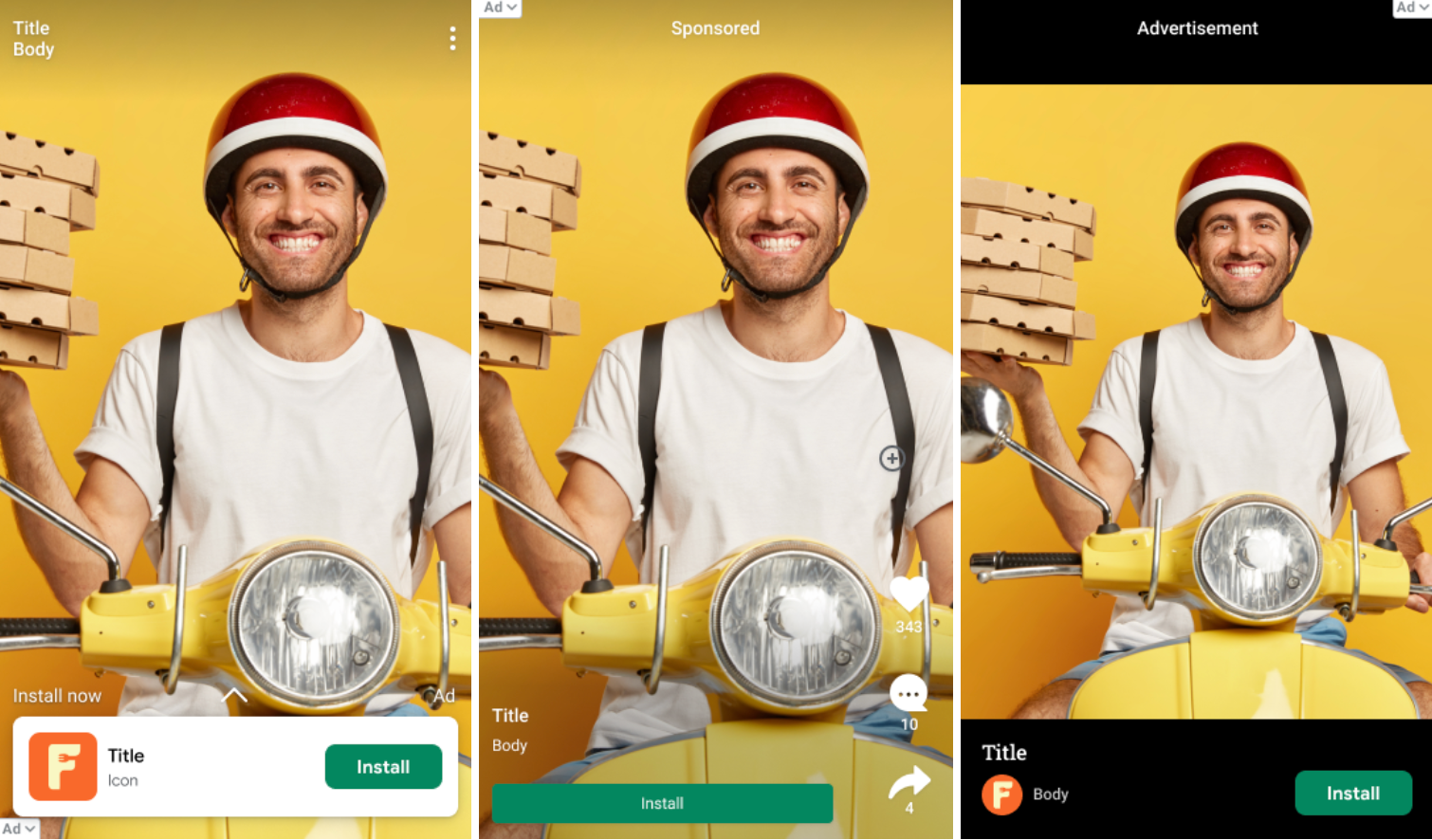
There is no separate API to call to enable full-screen native ads to serve beyond the instructions for [Native Advanced]. However, there are best practices we recommend when creating full-screen ad experiences:
Customize the AdChoices icon placement
By default, the AdChoices icon is placed at the top-right corner of the ad, but you can specify any corner where the AdChoices icon should appear by setting the AdChoices position option (AdChoicesPosition in Swift, GADAdChoicesPosition in Objective-C) based on placement of the ad. In the three images above, the AdChoices icon is placed in a corner far away from the Install button, the menu button and other ad assets to avoid accidental clicks.
Set your media view to a consistent size
Google always tries to serve the best-sized native assets for optimal performance. To facilitate this, the sizing for your native ads should be predictable and consistent. Your media view asset should be the same size for every ad request on the same device. To accomplish this, set your media view to a fixed size, or set it to fill the parent view with the parent view at a fixed size. Repeat this step for every parent view of the media view that is not a fixed size.
[Optional] Request specific aspect ratios for the media asset
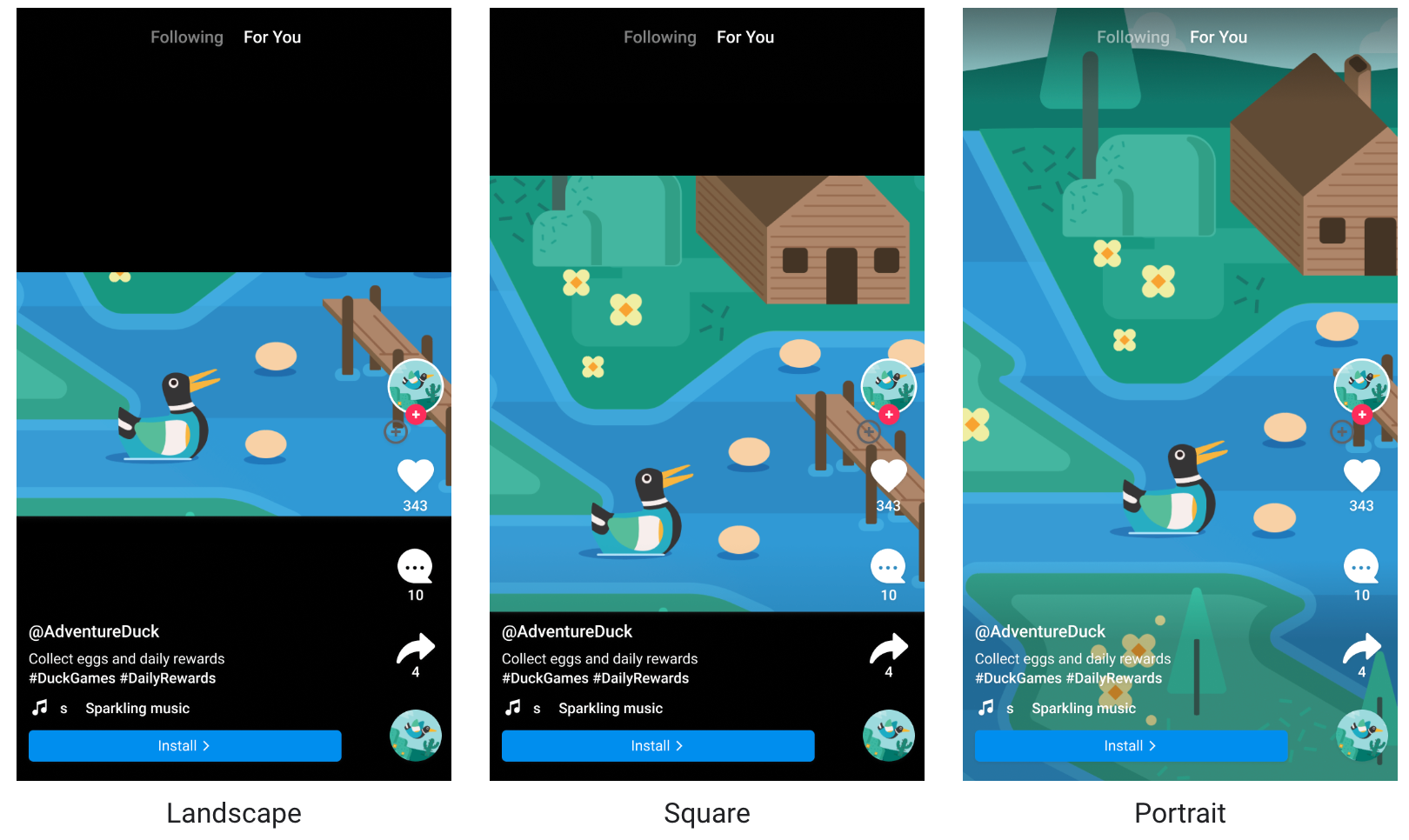
By default, ads of any aspect ratio may be returned. For example, you may get a landscape or square main creative asset when your app is in portrait mode. Depending on your native ad layout, you may wish to serve only portrait, landscape, or square ads. You can request assets of specific aspect ratios to best suit your layout.
- Swift
- Objective-C
let aspectRatioOption = NativeAdMediaAdLoaderOptions()
aspectRatioOption.mediaAspectRatio = .portrait
adLoader = AdLoader(
  adUnitID: "your ad unit ID", rootViewController: self,
  adTypes: adTypes, options: [aspectRatioOption])
GADNativeAdMediaAdLoaderOptions *aspectRatioOption = [[GADNativeAdMediaAdLoaderOptions alloc] init];
aspectRatioOption.mediaAspectRatio = GADMediaAspectRatioPortrait;

self.adLoader = [[GADAdLoader alloc] initWithAdUnitID:@"your ad unit ID"
                                   rootViewController:self
                                              adTypes:@[ GADAdLoaderAdTypeNative ]
                                              options:@[ aspectRatioOption ]];
MediaAspectRatio.any in Swift, GADMediaAspectRatioAny in Objective-C).